
Table of Contents
- What Is Laser Cut Printing?
- Laser Cutting Materials: What You Can Work With
- Essential Equipment for Laser Cut Printing
- Preparing Artwork for Laser Cutting
- The Complete Laser Cut Printing Process
- Laser Cutting and Engraving: Key Differences
- Choosing a Laser Cut Printing Service
- Common Mistakes to Avoid
- Frequently Asked Questions
Last Updated: October 14, 2026
What Is Laser Cut Printing?
Laser cut printing uses a focused laser beam to cut, engrave, or mark materials with exceptional accuracy. The laser vaporises or melts material along a programmed path, creating clean edges and detailed designs traditional methods struggle to achieve.
At SAS Creations, we combine laser cutting with printing to produce bespoke items from wooden awards to slate coasters and personalised leather goods, translating your digital design into laser instructions.
The appeal is straightforward: intricate detail, no setup fees for small runs, and professional results first time. Whether it’s wedding favours for 15 guests or branded merchandise for a corporate campaign, laser cut printing scales from one-off pieces to short runs without compromise.
Laser Cutting Materials: What You Can Work With
Different materials respond differently to laser energy. Knowing which suit your project prevents wasted time and ruined stock.
Wood, acrylic, leather, and slate
Wood is the most forgiving material. Hardwoods like oak and walnut cut cleanly with minimal charring; softwoods such as pine burn more easily, so lower the power. Plywood works, but glue layers char unevenly, solid wood gives better results.
Laser cut printing on wood creates striking contrast: engraved areas darken naturally, making text and images pop without finishing. Wedding names on place cards and company logos on desk organisers are staples because wood takes detail beautifully.
Acrylic delivers unmatched precision. The laser cuts cleanly, leaving polished edges that catch light, while engraving produces a frosted white surface ideal for layered designs or backlit signage.
Leather requires careful calibration. The laser burns the surface rather than cutting cleanly through thick stock, creating a distinctive dark edge that’s often the aesthetic goal. Personalised journals, branded cuff bracelets, and monogrammed belts all benefit.
Slate is brittle but laser-friendly. The beam scores the surface, and with the right power settings you get clean, readable engravings. Slate coasters with company logos or family names are popular because the dark stone shows light engraving beautifully, and it doesn’t warp or fade.
Metal and coated surfaces
Metal presents a challenge: most metals reflect laser heat rather than vaporising. Anodised aluminium and powder-coated steel work because the coating absorbs the energy, and the laser removes it to reveal bare metal, creating high-contrast designs on branded promotional items.
Stainless steel and bare aluminium are poor choices for cutting but acceptable for low-power engraving if you’re marking rather than cutting through.
Coated surfaces like Mylar-backed or laminated sheets work if the coating burns away cleanly. Test first, some coatings melt and bubble rather than vaporising, ruining the piece.
Essential Equipment for Laser Cut Printing
You’ll need three components working together: the laser cutter, design software, and a safe workspace.
The laser cutter itself
Laser cutters vary by power (watts) and cutting area.
Software and design tools
Your laser cutter ships with software that converts designs into cutting instructions.
The software must handle vector files (PDF, SVG, DXF), which scale infinitely without losing quality, essential for precision cutting. Raster images (JPG, PNG) work for engraving but not cutting, because the laser needs clean outlines to follow.
Most laser software sets power, speed, and frequency independently for cutting versus engraving. That flexibility makes laser cut printing so versatile, you can cut outlines and engrave detail in a single pass.
Preparing Artwork for Laser Cutting
Your design’s success depends on preparation. Poor prep leads to fuzzy edges, misaligned elements, or failed cuts.
File formats and resolution requirements
Use vector formats exclusively for cutting. SVG, PDF, and DXF files contain mathematical paths the laser follows precisely. Convert raster images (photographs, scans) to vector with tracing software before cutting.
For engraving, raster images work.
Colour settings control laser behaviour. Black lines mean cut or engrave at full power; red lines often signal a preview outline the laser ignores; grey shades adjust power gradually, lighter grey = lower power, darker grey = higher. Check your software’s colour mapping before sending the job.
Colour settings and design optimisation
Laser cut printing doesn’t use ink, so “full colour” means engraving a greyscale image onto the material. The laser burns darker where your design is darker, creating tonal variation.
For multi-colour designs, engrave different layers at different power settings or use multiple materials. A wooden plaque might combine engraved text (dark burn) with cut-out shapes (clean edges), a layered approach that makes laser cut printing distinctive.
Simplify designs before sending to the laser. Remove unnecessary details, the laser will render them but they may not improve the final piece. Test at actual size on scrap material first: a 2 mm line looks different on a 100 mm piece versus a 500 mm piece.
The Complete Laser Cut Printing Process
Here’s how a typical laser cut printing job flows from design to finished piece.
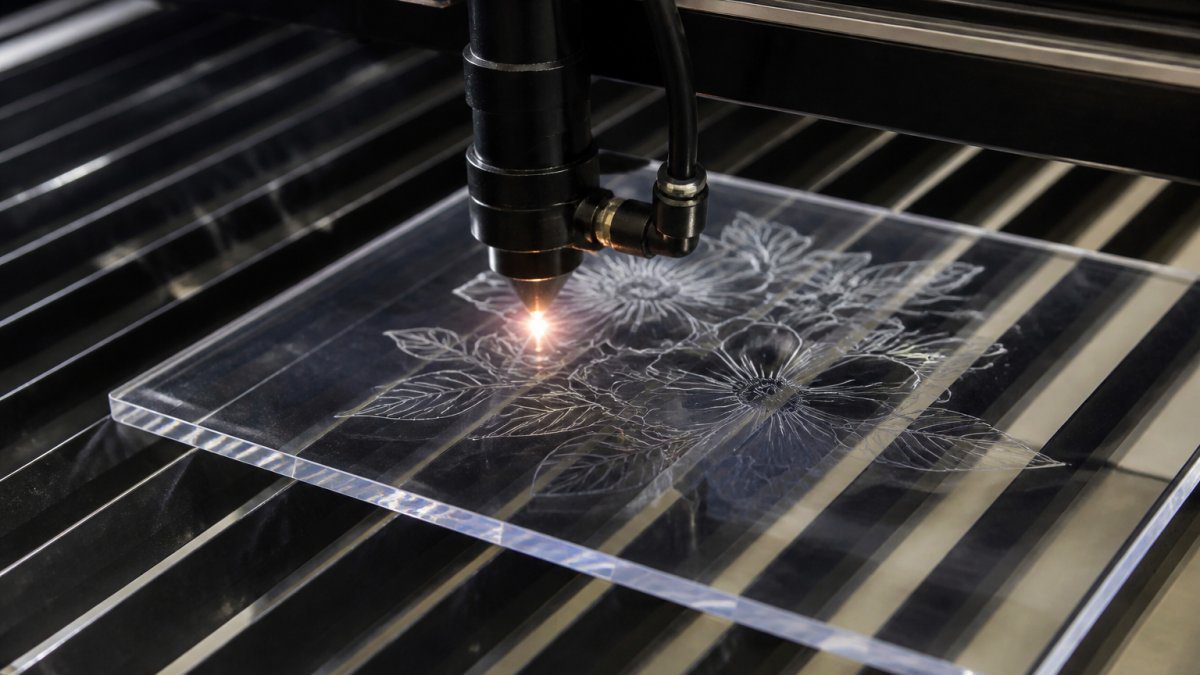
Step 1: Import and position your design
Open your vector file in the laser software. Position your design on the virtual cutting bed to match your material’s dimensions. Account for waste.
Check for overlapping elements: if two shapes occupy the same space, the laser cuts both, potentially weakening the piece. Arrange elements to maximise material use and minimise waste.
Step 2: Calibrate laser settings
Set power and speed based on your material and desired result. The software usually includes presets. Start with the preset, then adjust if needed.
Power is a percentage (0-100%); speed is measured in mm per second. Higher power and lower speed cut deeper; lower power and higher speed produce lighter marks. Test on scrap to dial in exact settings.
Focus the laser on your material’s surface. Most machines have autofocus, but manual focus is more reliable.
Step 3: Place and secure your material
Lay your material flat on the cutting bed. Gravity usually holds wood and acrylic in place; for leather and thin materials, use low-tack tape or clamps to prevent shifting.
Ensure the material sits flush against the bed. Warped or curved stock goes out of focus partway through the cut, producing inconsistent results; use strategically placed weights to flatten it.
Step 4: Execute the cut and engrave
Start the laser. The machine moves the head to the starting position and follows your design. Cutting produces a distinctive smell, acrylic like burnt plastic, wood like charred wood, leather sharp and distinct. This is normal.
Stay present during the cut. If something goes wrong (material catches fire, the head jams), stop the machine immediately. Most modern lasers have prominently placed emergency stop buttons.
The cutting speed depends on material thickness and laser power.
Step 5: Finish and inspect your piece
Once the laser finishes, allow the material to cool for a few seconds. Remove it carefully from the bed.
Inspect the cut edges. Clean cuts have minimal charring and smooth surfaces; rough or incomplete edges mean power was too low or speed too high, while excessive charring means power was too high.
For engraved pieces, wipe away any debris. Acrylic engraving produces fine plastic dust; wood produces char dust. A soft brush or compressed air clears these quickly.
If your design includes multiple colours or layers, add additional materials or finishes here: a wooden coaster might get a felt base glued to the bottom, a leather piece a protective sealant.
Teams ordering small batches of branded merchandise or one-off personalised gifts. Laser cut printing shines when you need precision without bulk manufacturing costs.
Laser Cutting and Engraving: Key Differences
Laser cutting uses high power to vaporise material completely, separating pieces or creating through-holes. The laser follows your vector lines, producing clean edges.
Laser engraving uses lower power to burn or mark the surface without cutting through, ideal for adding text, images, or detail to an existing piece. It creates contrast through tonal variation, darker areas receiving more laser energy.
Many projects use both techniques in a single pass: you might cut the outline of a wooden badge and engrave a portrait on its surface simultaneously. The software assigns different power levels to different colours, so the machine knows which lines to cut and which to engrave.
The distinction matters for material selection and design planning. Cutting requires material thick enough to support it, acrylic under 2 mm may crack; engraving works on any thickness, including thin veneers and delicate leather.
Choosing a Laser Cut Printing Service
If you don’t own a laser cutter, outsourcing is practical. The right partner delivers quality, speed, and reliability.
What to look for in a service provider
Confirm the service handles your specific materials, not every provider works with leather, slate, and metal equally well. Ask for samples of previous work in your chosen material.
Turnaround time matters for time-sensitive projects. SAS Creations prioritises quick turnaround on small orders. If you need 15 personalised mugs for a wedding in three weeks, confirm the provider can deliver without rushing quality.
Minimum order quantities vary. Some providers require 50-unit minimums; others, like SAS Creations, handle one-off items and small runs, flexibility that’s crucial for gifts and small business orders.
Quality, turnaround time, and material range
Quality shows in edge finish, engraving clarity, and material selection. Request samples before committing to a large order; poor edges suggest rushed work or miscalibrated equipment.
Turnaround time should be stated upfront. “3-5 business days” is realistic for most providers; anything faster suggests low volume or corner-cutting, anything slower a backlog or inefficiency.
Material range determines what you can create. A provider offering wood, acrylic, leather, and slate covers most personalised gift needs; for metal engraving or speciality materials, confirm the right equipment before ordering.
The best provider combines quality samples, realistic turnaround times, and willingness to handle small orders. Don’t settle for providers who treat small batches as inconveniences.
Common Mistakes to Avoid
Using raster images for cutting. Vector files are non-negotiable for cutting; raster images lack the clean paths the laser needs. Convert to vector first, or stick to engraving.
Ignoring material thickness. A 40-watt laser cuts 3 mm acrylic cleanly but struggles with 6 mm. Know your material thickness and machine capabilities before designing.
Setting power too high. Excess power burns material, creating rough edges and discoloration. Start conservative and increase gradually: you can rerun a piece, but you can’t undo over-burning.
Neglecting test cuts. Always test on scrap first. A five-minute test run prevents wasting expensive stock on miscalibrated settings.
Designing with delicate details. Lines under 0.5 mm and text under 8 pt often disappear or become unreadable. Simplify designs and use bold strokes for clarity.
Forgetting about material prep. Dirty or dusty material produces unclear results. Clean your stock before loading it into the laser.
Laser cut printing transforms ordinary materials into distinctive, professional-looking pieces. Whether you’re creating one-off personalised gifts or branded merchandise for a campaign, precision and preparation separate mediocre results from exceptional ones.
At SAS Creations, we handle the technical complexity so you can focus on design.
Frequently Asked Questions
What does laser cut printing mean?
Laser cut printing combines two processes: laser cutting, which slices through material, and laser engraving, which marks the surface with designs or text. The result is a precisely finished item with sharp edges and detailed, permanent designs. This method works on wood, acrylic, leather, slate, and metal, making it ideal for personalised gifts and branded merchandise.
Can a laser cutter print in colour?
Laser cutters engrave by burning or vaporising material, so they produce monochrome marks, typically black, brown, or the natural colour of the material. However, full-colour printing can be applied separately before laser engraving. Many services combine digital colour printing with laser engraving to achieve vibrant, multi-coloured results on items like mugs and coasters.
How do you prepare artwork for laser cutting?
Save your design in vector format (PDF, SVG, or AI) at high resolution. Use contrasting colours to distinguish cutting lines from engraving areas. Remove unnecessary layers and embed fonts. Test your design’s scale on the intended material before final production to avoid surprises.
What is the difference between laser cutting and laser engraving?
Laser cutting uses high-powered beams to cut completely through material, creating shapes or separating pieces. Laser engraving marks the surface without cutting through, ideal for adding designs, text, or images. Many projects combine both: cutting an item’s outline and engraving decorative details onto it.